- Getting Started
- How to Install Church WebApp
- How to login/sign in
- Navigating the Application
- App Workspace Overview
- Searching for data within the system
- Members Management
- How to signup/register
- How to delete/deactivate your account
- Managing user groups
- How to edit a profile
- Managing attendance
- How to delete another account
- How to view a member's details
- Manual activation of account
- Manage Admin Users
- How to register using QR (Quick Response) code
- How to change password
- Features and functionalities
- Finance Management
- Others
- Communication
- Permissions
Manage Roles and Privileges
Granting admin privilege to a user allows the user to perform more tasks within the system. Before you can grant a privilege to a user or member, you should be an admin user that has been granted that privilege by the admin or superuser being the system owner.
How to grant/revoke privilege from a user
- Login as admin user
- On the left menu, click on Members Mgt. and select Manage Members
- Search for the username or click on the Edit by the right-hand side of the user type to grant or revoke privilege(s).
- On the Permissions dialogue box that appears, select the Role e.g. User or Admin
- Make necessary changes such as selecting options or deselecting to grant or revoke privilege(s) and click Update Now when you are done.
Note: To change the user type for a new user who has not logged in to the system before, for example, from User to Admin or from Admin to User, the user has to log in first. The user has to activate his or her account by going to the email inbox, or the Admin can activate it manually
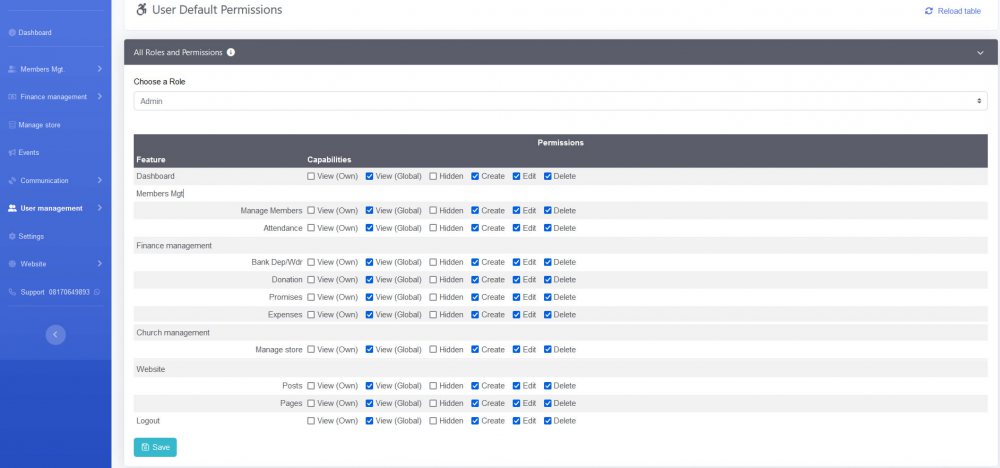
How to update default roles and privileges
- Login to the system as admin
- In the left menu, click User management and select User permissions
- On the User Default Permissions page, select a role, e.g. Admin or User from the Choose a Role drop-down menu, make necessary changes based on the role you have selected.
- Click Save button when you are done.
Was this article helpful?
Related pages in Permissions category:
-
No related pages found!